IP Packet Forwarding, Counting and Classification on the IXP2400
Due: Part I and Part II 10/22/ in class; Part III 10/29/ in class.
The goal of this lab is to explore the basic functionalities of the IXP2400 software development kit and Microengines. There are three parts to the project. Part I uses an existing sample application (IP forwarding) to collect a number of workload statistics from the IXP SDK simulator. Part II requires the adding one counting block to count the number of packets. Part III requires the programming of a small application on the Microengines to implement a simple packet classification mechanism.
All three parts require access to a machine that has the Intel SDK installed. If you want, you can also request an installation CDs from TA for your own machine.
Part I: IPv4 Forwarding Simulation
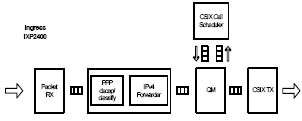
In this part, you will run an implementation of IP forwarding on the IXP2400 simulator. All the code is provided to you. You will just need to collect a set of workload statistics that are reported by the simulator. Figure 1 shows the block diagram of the forwarding application.
Figure 1: Block Diagram of the Forwarding Application
It is recommended that you go through the following steps before you explore the simulator on your own:
- Log on to the machine with the SDK installed and download part 1 code and unzip it into directory: C:\IXA_SDK_3.1\src\applications\ipv4_forwarder\oc48_pos\ingress\Lab3_part1_YourLastName (assuming SDK installed in C disk).
- Start “Developer Workbench”
- Click on File->Open Project to open the IP forwarding project. Open the project file oc48_pos_ipv4_ingress.dwp in that directory C:\IXA_SDK_3.1\src\applications\ipv4_forwarder\oc48_pos\ingress\Lab3_part1_YourLastName.
- You should see the list of project files on the right. Expand “Compiler Source Files” and double-click on “pos_ipv4.c” to access the IP forwarding code. Read through the code to get a basic understanding of the structure. Classification functions (e.g. ppp_decap_classify) are implemented in “ppp.c”; forwarding functions are in "ipv4_fwder.c".
- Build the project but clicking on Build->Rebuild.
- Before starting the simulation, you need to ensure it stops at some point. Click on Simulation->Packet Simulation Options. In the “Stop Control” tab, select device ID and checkmark the device option “Stop the simulation after the next 1000 packets are received through this device"
- Click Debug->Start Debugging.
- Click Debug->Run Control->Go. The simulation should start and run for several seconds. Then a window pops up that says “The simulation is being stopped because the IXP received 1000 packets from ...”. Click “OK”. At this point the simulation is interrupted and the simulation results are available. You can now access these statistics by looking at the appropriate windows.
- Click Simulation->Performance Statistics. In the “Summary” tab, you can see the microengine utilization and the MIPS rating as well as memory statistics. The “Microengine” tab shows more detailed results for each thread. Expand by clicking on the “+” next to a microengine. The “All” tab has a lot of statistics with detailed event counts and percentages, for example, scroll down to select DRAM Channel #0 Utilization, you will see percentage of channel is used and idel.
- Click Simulation->Execution Coverage… This will pop up a window that shows the source code of IP forwarding and a number on the left of some lines. This number indicates how often a particular instruction on a microengine was executed. Identify code blocks that are executed frequently and those that are not used at all in Microengine 1:3.
- Click view - > Debug Windows - > Packet Simulation Status to see how many packet received and transmitted. What are the receive rate and transmit rate.
Statistics that you should collect, present, and discuss are:
- Microengine utilization for all microengines and detailed statistics of one thread from uE 0 and one from uE 5 (execution % and aborted %).
- Processing power of microengines (in MIPS).
- Memory utilization for SRAM Channel #0 and #1 and DRAM channel #0.
- Identify code blocks that are executed frequently and those that are not used at all in Microengine 1:3 using instruction address.
- How many packet are received and transmitted? What are the receive rate and transmit rate?
Part II: Packet Forwarding and Counting
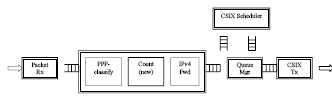
For this part, you will modify the above applications by adding counter block on the IXP2400 so that the application can store how many packets are received. Figure 2 shows the modified block diagram with one count block inserted between PPP_classify and IPv4_Fwd.
Figure 2: Modified Block Diagram of the Forwarding Application
Here are the recommended steps that you should follow:
- Log on to the machine with the SDK installed and start “Developer Workbench”.
- Click on File->Open Project to open the IP forwarding project. Open the project file oc48_pos_ipv4_ingress.dwp in that directory C:\IXA_SDK_3.1\src\applications\ipv4_forwarder\oc48_pos\ingress\Lab3_part1_YourLastName.
- Create the count.c file under
C:\IXA_SDK_3.1\src\applications\ipv4_forwarder\oc48_pos\ingress\Lab3_part1_YourLastName\dispatch_loop
as shown
below:
/************************
* File: count.c
*************************/
INLINE void count (void)
{
// standard check to see if this packet is for us
if (dlNextBlock != BID_COUNT)
return ;
sram_incr((volatile void __declspec(sram) *)(COUNT_SRAM_ADDR));
// send to next block
dlNextBlock = BID_IPV4;
return;
} - Create a microblock IDs for count by adding the following lines
into file dl_system.h
/* ECE526_begin */
#define BID_COUNT 0x2A
/* ECE526_end */ - Specify the counter SRAM base address 0x40300000 by adding the
following lines into file dl_system.h
/* ECE526_begin */
#define COUNT_SRAM_ADDR 0x40300200
/* ECE526_end*/ - In the original project, the PPP_Classify sent packets to
IPv4Fwd. Now it should send to the
Count microblock. Modify the ppp.c file as shown below:
INLINE void _ppp_classify(void *p_pkt,UINT in_offset, mem_t memType) {
...
if (type == PPP_IPV4)
{
dlMeta.headerType = PPP_IPV4_TYPE;
// dlNextBlock = BID_IPV4;
/* ECE526_begin */
dlNextBlock = BID_COUNT;
/* ECE526_begin */
}
...
return;
} - Modify the dispatch loop file pos_ipv4.c file to call count()
before calling IPv4Fwder as shown
below:
/*------------------------------------------------------------------------
* The main function of the dispatch loop
*------------------------------------------------------------------------
*/
int main()
{
/*
* initialize the microblocks
*/
dl_init(); //initialize the dispatch loop
--------
*/
while(1)
{
SIGNAL scratch_put;// signal in scratch write
SIGNAL_MASKsig_mask = 0x0;// mask of signals to wait on
ppp_decap_classify(pkt_hdr,0x0, DRAM_RD_REG);
/* ECE526_begin */
count();
/* ECE526_end */
Ipv4Fwder(pkt_hdr,IP_HDR_OFFSET,pkt_hdr,IP_HDR_OFFSET);
------} // end while
return 0;
} - Include the count.c file in pos_ipv4.c.
#include "dl_source.c"
#include "ppp.c"
#include "ipv4_fwder.c"
/* ECE526_begin */
#include "count.c"
/* ECE526_end */ - Add the count.c file to the project by clicking Project >
Insert Compiler Source Files
C:\IXA_SDK_3.1\src\applications\ipv4_forwarder\oc48_pos\ingress\Lab3_part1_YourLastName\dispatch_loop\count.c
on the
Developer Workbench menu bar. - Modify the system_setup.ind file by adding the following
statement just before
ps_start_packet_receive()
init_sram(0x0, 0x40300200, 0x4030020f);
This initializes the SRAM address for the count microblock. - Rebuild project and set watch point at SRAM address by click view- > debug widow ->memory watch ->add watch, select SRAM adding value 0x40300200:0x4030020f
- Start debugging as part I.
- In order to see the contents of SRAM, you should click refresh. Please do screen copy of your memory contents and Packet Simulation Status.
Part III: Packet Forwarding, Classification and Counting
The goal of part three is to use what we learned so far from part I and II to further modify the code so that we can report the number of packets each type. The packets are classified based on the packet header information. There are four types of traffic that are considered in this lab:
- Web traffic over TCP over IPv4
- Non-Web traffic over TCP over IPv4
- UDP over IPv4
- IPv6
- Log on to the machine with the SDK installed and download part 3 code and unzip it into directory: C:\IXA_SDK_3.1\src\applications\ipv4_forwarder\oc48_pos\ingress\Lab3_part3_YourLastName (assuming SDK installed in C disk).
- Start “Developer Workbench”
- Click on File->Open Project to open the IP forwarding project. Open the project file oc48_pos_ipv4_ingress.dwp in that directory C:\IXA_SDK_3.1\src\applications\ipv4_forwarder\oc48_pos\ingress\Lab3_part3_YourLastName.
- Open file "ppp.h" define more parameters that you need for "ppp.c"
- Modify the function block _ppp_ECE526_classify in file "ppp.c" for classificaiton
- Modify file "count.c" so that it can store different types of packets into differnt SRAM address.
- Rebuild, debugging
- Screen copy of the memory contents and Packet Simulation Status.
Your part III report should include:
- The code that you wrote in the classification part of the ppp.c, ppp.h and count.c.
- The traffic mix percentage for four different type packets and packet receive and transmit rate.
- Based on the traffic mix, can you reorder the classification steps such that performance is optimized, please re-write you ppp.c code.
- Re-simulate the application, does the receive and transmit rate increase after your optimize ppp.c code? If not, why?
References:
1.
IPv4 Forwarding Application
Refrence
2.
IXP2400 Development Tools User's Guide